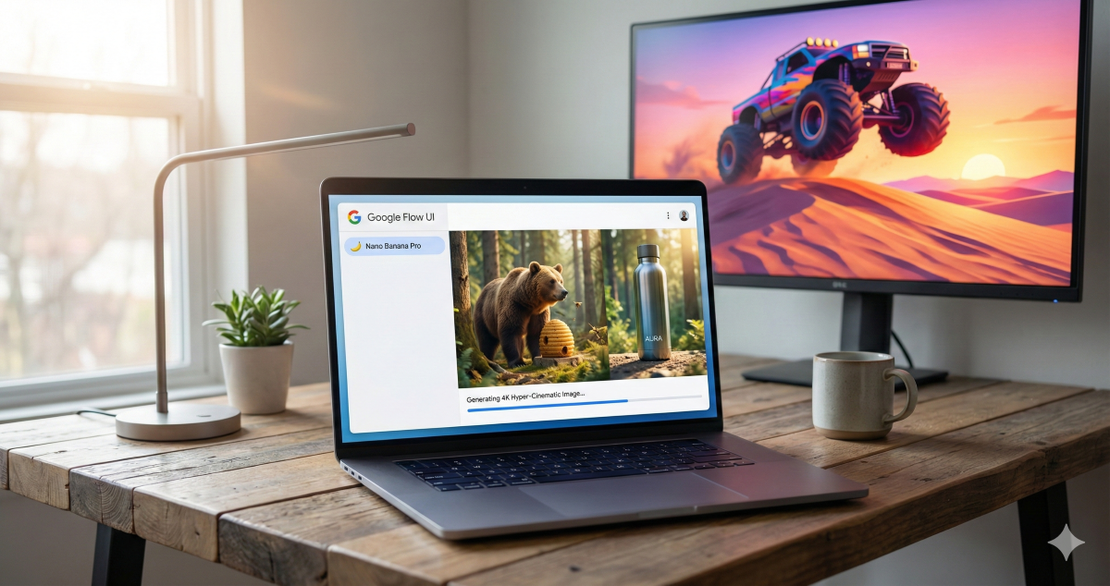
Master Nano Banana Pro in Google Flow: Zero-Credit 4K Images, Precise Edits, and Cinematic Video in Minutes
Table of Contents
TL;DR
- I open Flow, click New Project, and switch the model to Nano Banana Pro.
- I set the aspect-ratio (landscape or portrait) and choose 1-4 output slots – the default is two.
- I type a prompt like “hyper-cinematic bear collecting honey, 4K, hyper-realistic” and hit Generate – no credits are spent.
- I point-and-click a region, add a short text prompt, and Nano Banana Pro instantly patches the spot.
- I press Add to Prompt, turn on Frames-to-Video, pick Veo 3.1, set a low-motion style, and export a smooth 4K clip.
Why this matters
CTOs and senior engineers I’ve spoken with keep hitting the same wall: the AI image tools they tried left a faint watermark, ate away at their credit budget, and forced a painful post-production loop to reach 4K quality. When you’re trying to spin up product ads for a luxury water brand (think Aura) or a monster-truck promo, every extra dollar and every stray pixel hurt the ROI. The pain points stack up:
- Watermarks on Gemini-generated pictures make polished ads look amateur.
- Credit throttling forces a trade-off between quantity and cost.
- Resolution caps keep you from delivering the crisp 4K assets modern campaigns demand.
- Editing friction makes it a nightmare to tweak a single element without re-prompting the whole scene.
- Character drift across a series of images breaks brand consistency.
- First-frame/last-frame video tricks can inject unwanted jitter when you stitch frames together.
- Aspect-ratio guesswork wastes time picking the right canvas for each channel.
Nano Banana Pro, tucked inside Google Flow, hits every one of those bullets. It’s free on the Flow free tier, it spits out watermark-free 4K pictures, and it lets you toggle the number of outputs per prompt from one to four without touching your credit balance. The result? A leaner creative pipeline that lets engineers focus on storytelling, not credit accounting.
Core concepts
Nano Banana Pro is free inside Flow
The Flow overview page lists Nano Banana Pro among the default models and notes that the free tier grants 180 monthly credits – enough to spin dozens of 4K renders without spending a dime Google Labs — Flow Overview (2025). Those credits cover the UI, not the model itself; Nano Banana Pro runs at zero-credit cost under the default settings Google Blog — Introducing Nano Banana Pro (2025).
No visible watermarks
The Verge’s coverage points out that Nano Banana Pro outputs carry C2PA metadata rather than a visible SynthID watermark, which Gemini 2.5 still applies The Verge — Nano Banana Pro Free to Try (2025). That means the image you download is clean for product ads, press kits, or any brand-critical material.
4K resolution out-of-the-box
Both the official DeepMind model card and the Verge article confirm that Nano Banana Pro supports up-to-4K generation DeepMind — Gemini Image Pro (2025) The Verge — Nano Banana Pro Free to Try (2025). The UI previews at 1K, but the download link yields the full-size file.
Output count control
The Flow side-bar lets you slide the Outputs per Prompt selector between 1 and 4, defaulting at 2 Google Labs — Flow Overview (2025). The platform automatically returns that many distinct variations for the same prompt, saving you the manual re-run.
Point-and-edit workflow
When you hover over a generated image, a rectangle drawer appears. Draw a box around a region, type a short instruction (“make the bear’s eyes green”), and Nano Banana Pro rewrites that patch while preserving the rest of the composition Google Blog — Introducing Nano Banana Pro (2025).
From frames to cinematic video
Flow’s Frames-to-Video mode swaps the model selector to Veo 3.1 – Google’s generative video engine. The Cloud blog explains Veo 3.1’s “first-frame, last-frame” control, multi-aspect ratio support, and rich synchronous audio Google Cloud — Veo 3.1 Prompt Guide (2025). Pair that with a low-motion prompt (e.g., “slow pan, low-motion, hyper-cinematic”) and you avoid the jitter that often plagues AI video.
How to apply it
1. Spin up a new Flow project
- Open Flow and click New Project.
- In the sidebar, hit the model dropdown and select Nano Banana Pro.
- Verify the credit banner shows Free tier – 0 credits used.
2. Choose aspect ratio and output count
- Click the Aspect-ratio button – pick Landscape (16:9) for a YouTube ad or Portrait (9:16) for Instagram Stories.
- Drag the Outputs slider to the number you need (I usually set 3 when exploring variations for a product shot).
3. Craft a cinematic prompt
A solid prompt gives the model both visual intent and a quality cue. My go-to template is:
[subject] in a hyper-cinematic setting, 4K, hyper-realistic, rich color grade, soft lighting, [specific detail]
Example for a water-brand ad:
Luxury bottle of Aura water on a marble pedestal, hyper-cinematic with a really good color grade, 4K, soft reflection, sunrise background
Press Generate – the three images appear in seconds, and my credit counter stays at zero.
4. Edit a single element
- Hover over the generated image; the rectangle drawer pops up.
- Draw a box around the bottle’s label.
- In the prompt bar type: “replace text with ‘Pure Spring’ and switch font to Helvetica Bold”.
- Hit Edit – the model swaps the label in place, preserving lighting, shadows, and the hyper-cinematic vibe.
5. Turn images into video frames
- Click Add to Prompt – Flow automatically migrates the three images into the Frames-to-Video pane.
- Switch the model dropdown to Veo 3.1.
- In the prompt bar, prepend a low-motion cue: “low-motion, smooth transition, cinematic color grading”.
- Toggle First-frame only if you want a static-camera sweep; leave Last-frame off to avoid the extra jump the blog warns about.
- Hit Generate Video – Veo 3.1 spits out a 4K clip (≈3 seconds per frame) with synchronized audio.
6. Stitch multiple clips (optional)
If you need a longer ad, repeat steps 3-5 for each scene (e.g., bottle, monster-truck chase, honey-bear hero). Download each MP4 and drop them into Flow’s built-in video editor to concatenate, add transitions, and export a single master file.
7. Keep an eye on credits
Even though Nano Banana Pro itself costs zero, the Veo 3.1 video generation consumes credits – the free tier allocates 100-180 credits per month. The Flow UI shows a live counter; if you dip below the threshold, you can either top-up or wait for the next refresh.
Pitfalls & edge cases
- Hidden watermarks on lower tiers – The Verge notes that only Ultra-subscribers get fully clean outputs; free and Pro tiers may still carry subtle metadata that some platforms treat as a watermark. If your brand policy forbids any trace, upgrade to Ultra or use the Google AI Studio endpoint.
- First-frame/last-frame jitter – The Cloud Veo 3.1 guide warns that enabling both can add “excessive movement” when the model tries to extrapolate motion. I always disable Last-frame for static cinematic teasers.
- Credit surprise on video – While image generations are free, a 10-second 4K video can burn ≈15-20 credits. Plan your video length accordingly, or batch frames into a single video to amortize the cost.
- Resolution ceiling – The model caps at 4K; attempts to request 8K silently fallback to the max. If you need higher fidelity, consider downstream upscaling tools.
- Aspect-ratio mismatch – Feeding a portrait prompt into a landscape canvas forces the model to crop, often chopping important elements. Always match the UI selector to the final channel.
- Character consistency edge – The DeepMind card claims strong consistency, but rapid style changes can break it. Keep the phrasing of the subject constant across prompts (e.g., always say “bear” not “brown animal”).
Quick FAQ
| Question | Answer |
|---|---|
| How do I start a new project in Google Flow with Nano Banana Pro? | Click New Project, select Nano Banana Pro from the model dropdown, and confirm the free-tier credit banner. |
| Can I really generate 4K images without spending credits? | Yes – the default Nano Banana Pro mode uses zero credits; the credit counter stays at zero while you generate up to four 4K images per prompt Google Blog — Introducing Nano Banana Pro (2025). |
| What’s the best way to lock in a specific aspect ratio? | Use the Aspect-ratio selector in the sidebar before you hit Generate. Landscape (16:9) works for YouTube, portrait (9:16) for TikTok, and square (1:1) for Instagram feeds. |
| How can I edit just the bear’s eyes without re-prompting the whole scene? | Hover, draw a rectangle around the eyes, type a concise edit like “make eyes green”, and click Edit – the model patches only that region. |
| How many images can I get from a single prompt? | The slider lets you pick 1-4 outputs; the default is two. I usually request three to get enough variation for A/B testing. |
| What should I watch for when using Veo 3.1 for video? | Keep motion low-key in the prompt, disable Last-frame to avoid jitter, and remember each video burn costs credits even on the free tier Google Cloud — Veo 3.1 Prompt Guide (2025). |
Conclusion
If you’re a CTO or senior engineer wrestling with credit-burning image pipelines, Nano Banana Pro inside Google Flow is the shortcut you’ve been waiting for. It lets you spin out watermark-free 4K assets, tweak any element with a point-and-text edit, and stitch those frames into a cinematic video using Veo 3.1 – all while your credit meter stays at zero for image work. The only thing you need to watch is the modest credit draw when you cross into video generation. Start a new Flow project today, set the output count to four, and watch your brand-level ads go from idea to polished deliverable in under ten minutes.
References
- Google Blog — Introducing Nano Banana Pro (2025) – https://blog.google/technology/ai/nano-banana-pro/
- Google Labs — Flow Overview (2025) – https://labs.google/flow/about
- Google Cloud — Ultimate Prompting Guide for Veo 3.1 (2025) – https://cloud.google.com/blog/products/ai-machine-learning/ultimate-prompting-guide-for-veo-3-1
- The Verge — Nano Banana Pro Free to Try (2025) – https://www.theverge.com/news/824785/google-nano-banana-pro-try-free-examples-prices
- DeepMind — Gemini Image Pro (2025) – https://deepmind.google/models/gemini-image/pro/
Get the Weekly AI Infrastructure Brief
One benchmark, one cost change, one production lesson — every week. No spam, unsubscribe anytime.