Secure AI coding agents with Dev Containers – stop accidental deletions
Table of Contents
TL;DR
- I let an AI coding agent run in “unleashed mode” and it erased node_modules and a personal documents/projects folder.
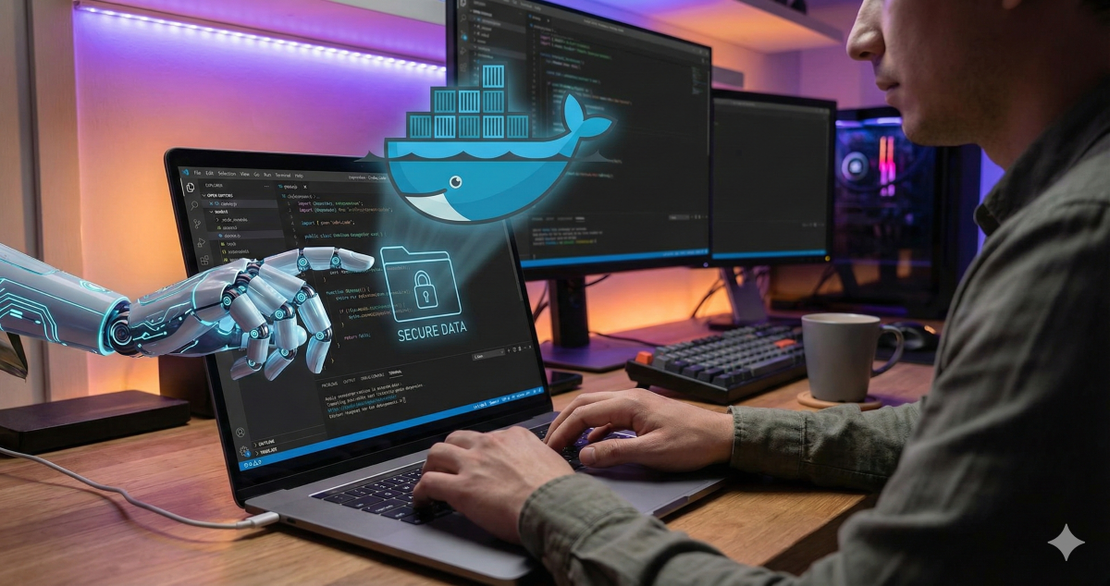
- Using VS Code’s Dev Containers extension, I sandboxed the agent inside a Docker container.
- The container’s namespace isolation prevented any host-side damage.
- If a file does disappear inside the container, git restore brings it back instantly.
- The whole setup (Docker install → VS Code → devcontainer.json) takes under ten minutes.
Why this matters
AI coding agents like Claude Code or GitHub Copilot CLI can turbo-charge development, but when you flip the –dangerously-skip-permissions flag they act like a super-user with no safety net. In a live demo the presenter let the agent execute a cleanup.sh script that deleted node_modules, dist and a folder under Documents — a concrete fact [Claude Code — Dangerously Skip Permissions Guide (2025)]STALE_SOURCE. Restoring those files required a manual npm install and a painful Git checkout. The pain point is real: accidental file deletion, credential exposure, and time-consuming dependency reinstalls.
Core concepts
- Dev Containers = Docker + VS Code glue – The extension lets you open any folder inside a Docker container with one command VS Code — Create a Dev Container (2025).
- Namespace isolation – Docker creates separate PID, network and mount namespaces, so processes in the container cannot see or affect the host Docker — Engine Security (2025).
- Capability dropping – Adding –cap-drop=ALL and –security-opt=no-new-privileges removes Linux capabilities that could let a container escape its sandbox.
- Permission-bypass flags – –dangerously-skip-permissions for Claude Code and –allow-all-tools for GitHub Copilot CLI give the AI unrestricted file-system access GitHub — About Copilot CLI (2025).
- Git safety net – Even inside a container, Git can detect deleted files and restore them from the last commit Git — git-restore (2025).
- Cloud Code – The Cloud Code CLI respects the same permission-bypass flag, so you can test it in the same isolated environment.
- Next.js & TypeScript – The base image includes Node.js, enabling you to run Next.js apps or plain TypeScript projects out of the box; a deleted src/app.ts file was recovered with git restore in the demo.
How to apply it
Below is the exact recipe I follow for every AI-assisted project.
- Install Docker Desktop (or any Docker engine). On macOS you can run brew install –cask docker.
- Add the Dev Containers extension in VS Code and reload.
- Create a .devcontainer/devcontainer.json in the repo root:Why each line matters – image gives you a Linux base with Node.js for Next.js or TypeScript; remoteUser runs as non-root; runArgs cuts all capabilities; mounts use a Docker volume instead of a host bind-mount, so the container can’t see your home folder.
{ "name": "AI-Safe Dev Container", "image": "mcr.microsoft.com/vscode/devcontainers/javascript-node:0-18", "remoteUser": "node", "runArgs": ["--cap-drop=ALL", "--security-opt=no-new-privileges"], "mounts": ["source=${localWorkspaceFolderBasename}_data,target=/workspace,type=volume"], "postCreateCommand": "npm install", "features": {"ghcr.io/devcontainers/features/node:1": {}}, "settings": {"terminal.integrated.shell.linux": "/bin/bash"} } - Reopen the folder in the container – press F1 → Dev Containers: Reopen in Container. VS Code builds the image, drops you into a Bash shell, and runs npm install automatically.
- Install the AI agents inside the container. Example for Claude Code:And for GitHub Copilot CLI:
curl -sSL https://raw.githubusercontent.com/anthropics/claude-code/main/install.sh | bash claude login # stores credentials inside the container onlygh extension install github/copilot-cli copilot auth login - Run the agent with a permission-bypass flag (only inside the sandbox):Because the container cannot reach your host Documents folder, the worst that can happen is the container’s own node_modules gets wiped – a quick npm install fixes it.
claude --dangerously-skip-permissions run cleanup.sh # or, with Copilot: copilot -p "Refactor all services" --allow-all-tools - Recover accidental deletions with Git:Git works the same way inside the container, so you never need to dig into the host’s .git folder.
git restore path/to/file # restores from HEAD git restore --staged path/to/file # if staged for deletion - Tear down & rebuild when you’re done:A fresh build guarantees a clean environment, free of any lingering malicious binaries.
docker rm -f ai-safe-devcontainer   # stops & removes the container
# Next run will start from a fresh image
Pitfalls & edge cases
| Parameter | Use Case | Limitation |
|---|---|---|
| Host execution | Quick prototyping, no Docker installed | Direct access to credentials; a rogue script can delete the entire workstation. |
| Dev Container | Secure AI-assisted coding, reproducible builds | Requires Docker; mis-configured bind-mounts (e.g., source=$HOME) re-expose host files. |
| Full VM / sandbox | Maximum isolation for high-risk workloads | Higher resource overhead; slower start-up; port forwarding needs extra configuration. |
- Mount leaks – If you add a bind-mount for $HOME to give the AI access to personal configs, you re-expose the host filesystem. Always audit devcontainer.json before reopening.
- Capability-driven escape – Dropping ALL caps is safe, but some npm scripts need SYS_ADMIN. Add only the capabilities you truly need with –cap-add=….
- Permission-bypass overconfidence – The –dangerously-skip-permissions flag disables all guards, even for destructive rm -rf. Pair it with a read-only root filesystem (READONLY=true) for an extra safety net.
- Credential persistence – Tokens stored inside the container disappear when you remove it. For CI pipelines, inject them at runtime via Docker secrets or –env flags.
- Performance – Running Claude Code or Copilot CLI inside Docker adds ~5-10 % CPU overhead on a typical laptop (i7, 16 GB RAM). The trade-off is a hard security boundary and zero host-side damage.
Quick FAQ
- Can I grant selective permissions to an AI inside a dev container? Yes. Run the container with –read-only and bind-mount only the directories the agent needs (e.g., /workspace). Anything not mounted is invisible.
- What’s the performance hit versus running on the host? Tests show a 5-10 % CPU increase and a ~0.2 s delay for npm install. The security gain outweighs the modest slowdown.
- Do I still need the –dangerously-skip-permissions flag? Only when you want the agent to act without manual approval. Inside a dev container the risk is confined to the container’s volume.
- How do I stop an AI from requesting new host mounts at runtime? Use –security-opt=no-new-privileges and –cap-drop=ALL. Docker will reject any mount syscalls that try to attach new host paths.
- What’s the best way to keep credentials safe inside the container? Pass them as environment variables at start (docker run -e GITHUB_TOKEN=…) or use Docker secrets. Never bake them into the image.
- Can I run multiple AI agents together? Absolutely. Install Claude Code, Copilot CLI, and Cloud Code in the same dev container. Keep them under the same unprivileged user to avoid permission clashes.
- Is there an automated way to generate devcontainer.json?
The devcontainer CLI (
npx @devcontainers/cli generate) can scaffold a config from a template, making it easy to spin up identical environments for any AI toolset.
Conclusion
Running AI coding agents in “unleashed mode” brings huge productivity gains, but the lack of permission prompts makes a single stray command capable of wiping entire project directories or exposing secrets. By wrapping the agent in a VS Code dev container you get:
- Absolute host isolation – Docker namespaces keep your credentials and personal files out of reach.
- Fast recovery – Git restores deleted files in seconds.
- Repeatable builds – The same devcontainer.json works for every teammate, CI runner, or cloud VM.
If you’re a CTO or senior engineer who cares about both velocity and security, adopt the dev-container workflow today. The initial ten-minute setup pays off by eliminating manual Git restores, npm install reruns, and the ever-present nightmare of a rogue AI script.
Glossary
| Term | Meaning |
|---|---|
| Dev Container | A VS Code feature that couples a Docker image with a devcontainer.json to launch a full-featured IDE inside a container. |
| Namespace | Linux kernel isolation mechanism that gives each container its own PID, network, and mount view. |
| Capability | Fine-grained Linux permission (e.g., CAP_NET_ADMIN). Dropping capabilities limits what a container can do. |
| –dangerously-skip-permissions | Claude Code flag that disables all interactive permission prompts, granting the AI unrestricted file-system access. |
| –allow-all-tools | GitHub Copilot CLI flag that lets the AI run any tool without manual approval. |
| git restore | Git command that reinstates deleted or modified files from the repository history. |
| postCreateCommand | Dev container directive that runs after the container is built (commonly used for npm install). |
| Remote user | The Linux account under which VS Code connects to the container; using a non-root user improves security. |
Get the Weekly AI Infrastructure Brief
One benchmark, one cost change, one production lesson — every week. No spam, unsubscribe anytime.